
If your laptop takes two minutes to reach the desktop, freezes when you open Photos, or sounds like a tiny tractor every time you save a file, it is probably not “too old”. It is probably still running a spinning hard drive.
In Wickford we see this every week: a perfectly decent i5 or Ryzen machine from 2018–2021, with 8 or 16GB of RAM, and a 5400rpm disk that cannot keep up with Windows 11. A solid-state drive (SSD) is a drive with no moving parts. Fitting one is usually the biggest speed change you can make without replacing the laptop. Try that before you shop for a new machine.
This is not the same job as a full clean because it will not turn on, and it is not automatically a reason to buy new. It is a parts swap that copies your files across.
Is it the hard drive, or is Windows just being slow?
Three clues show up together:
- The drive light, or the chassis, chatters when you copy a folder or open Outlook. SSDs are silent. A mechanical disk moves its heads to find each file.
- Task Manager → Performance → Disk sits at 100% while the processor is almost idle. The disk is the queue, not a virus by default.
- It was fast in 2019 and miserable in 2026 with the same apps. Windows, Chrome and Teams grew. The spinning disk did not.
Heat can also make a machine feel slow. If the fans scream and it only crawls after twenty minutes, read the overheating guide first. An SSD will not fix a laptop that is slowing itself down because it is too hot.
A machine that takes five minutes to boot and clicks or grinds as it does so is a dying disk, not a slow one. Stop using it and treat it as a data recovery problem. Copying a failing disk “to see if it helps” is how family photos disappear.
What does an SSD upgrade involve?
The usual job keeps the Windows you already have. We copy the existing drive — files, programmes, licence, desktop clutter and all — unless you ask for a fresh Windows setup.
- Copy your existing drive.
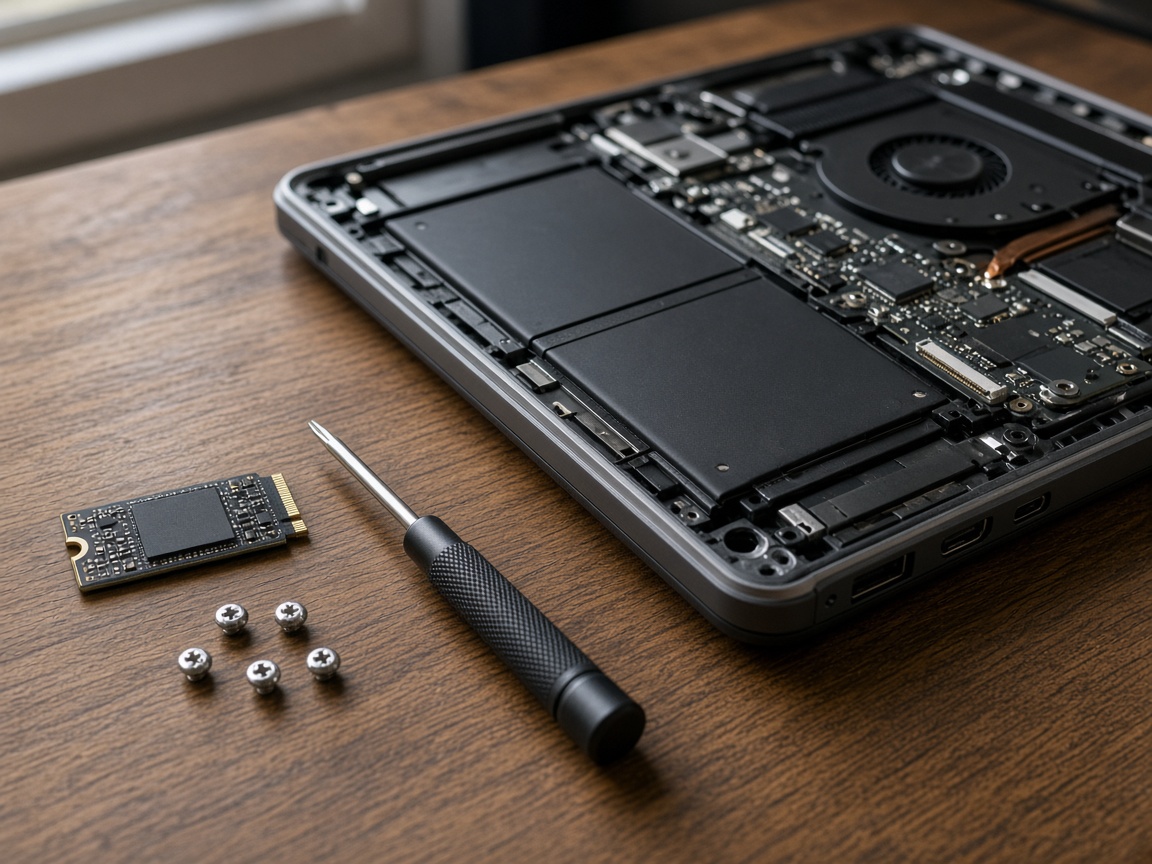
- Fit a 2.5” SATA SSD or an M.2 NVMe module, whichever the laptop can take.
- Put that copy on the new drive, give it the free space, and check that it boots.
- Check the old disk’s health first, so a dying drive is not copied onto a new one without you knowing.
How long it takes depends on the job and on the part. We agree the timing with you before we start. You keep your PIN, your Outlook profile, and the folder of PDFs you could not recreate.
SATA or NVMe: which drive will the laptop take?
SATA and NVMe are two shapes of SSD. Thin 2016–2019 office laptops often only take a 2.5” SATA SSD. That is still five to ten times faster than a spinning disk for boot and documents. Newer machines and most custom PCs take M.2 NVMe, which is the better choice for photo work and games.
The motherboard decides the fastest drive it can use. A Gen5 stick in a Gen3 slot only runs at Gen3 speed, so we fit a drive that matches the slot you have. If you are building a new PC rather than upgrading a laptop, the custom PC page is the cleaner route.
Capacity is the other honest conversation. 256GB felt huge in 2016. In 2026 it fills with Teams caches and phone backups. 500GB is the sensible floor for a home laptop, and 1TB if you keep raw photos or a Steam library on the machine.
Will I lose my files?
Not if the copy is done properly. Your Windows login, Outlook profiles and Steam library stay put. The old disk can be kept as a USB backup for a fortnight if you want a safety net. That copy is a snapshot of the laptop on the day we do it, not a backup habit. If the only photos live on that laptop, say so before we start.
MacBooks are a different job. Storage that is soldered on Apple silicon cannot be swapped. Intel Macs with a removable SSD still can. That sits on the MacBook speed guide. If you are not sure which Mac you have, MacBook repair in Wickford is the right first stop.
Who is this for around Wickford?
Wickford and SS11/SS12 drop-offs, plus collection from Basildon, Billericay, Rayleigh, Brentwood and the rest of the usual map. School-run laptops, a dusty Dell in a van footwell, and small-office towers that still have a large storage disk next to a tiny boot SSD all belong here.
If the lid is cracked as well as slow, say so up front. That is a screen job plus an SSD, not one mystery quote. Panel labour sits on the Wickford screen repair page.
How do you book an SSD upgrade in Wickford?
Diagnostics are free. If the laptop is not worth the upgrade, No-Fix, No-Fee applies, so you do not pay labour for a job we do not do.
Drop-off is 32 Glebe Road, Wickford. Collection is free across SS11, SS12 and South Essex. Start from Wickford laptop repair or Contact, or call 07367 652987.
FAQ
Will I lose my files?
No. The usual job copies Windows, your files and your programmes onto the new drive. Tell us if the only copy of something important is on that laptop.
How long does an SSD upgrade take?
It depends on the laptop and on the part. We agree the timing with you before we start.
Will you reinstall Windows?
Only if you ask. The usual job keeps the Windows install you already have.
Can any SSD go in any laptop?
No. The laptop decides whether it takes a 2.5” SATA drive or an M.2 NVMe drive, and how fast that slot can run. We match the drive to the slot.
Do I need a new laptop instead?
Not if the rest of the machine is still fine and the slow part is the spinning disk. A cracked screen or a laptop that will not turn on is a different job, and we will say so before you pay for a drive.
What if the old drive is clicking?
Stop using it. Clicking or grinding usually means the disk is failing, which is a data-recovery problem rather than a simple speed upgrade.