
Your laptop is plugged in and not charging, or the percentage will not move. That is a laptop battery not charging problem, and it is often the charger, the wall socket, or a Windows setting rather than a dead battery. The checks below are the ones worth trying first.
We see this every week at the Wickford workshop. If you would rather we look at it, call 07367 652987 or book a Wickford laptop repair. Bring the charger you actually use. Diagnostics are free.
Quick fixes to try first
Try one step at a time, in this order.
- Check the charger. Unplug it at the laptop and at the wall, then push both ends back in firmly. If the brick has a light, see whether it comes on. A phone charger that happens to fit is often too weak for a laptop, so the battery looks dead when the charger is the problem. Use a supply that matches the wattage printed on the original brick.
- Try another wall socket. Use a different socket, not the same extension lead.
- Reset the power. Shut the laptop down, unplug the charger, and hold the power button for a few seconds. Plug the charger back in and switch on. This can clear a stuck “not charging” reading. It does not replace a failed part.
- Restart the laptop. A normal restart is worth doing once the charger is seated. On Windows 11, “plugged in, not charging” sometimes clears after that.
If it only charges when you hold the plug at an angle, a new battery will not help. The socket is the next thing to check, and we can look at that for you.
Plugged in, not charging, or stuck at a percentage (Windows 11)
Windows 11 can show the lead as connected and still say “not charging”. The percentage can also sit at the same number all day, often around 80%.
On many Dell, Lenovo and HP laptops that stop is on purpose. A charge limit keeps the battery from filling all the way so it lasts longer. Turn the limit off in the manufacturer’s app if you want a full charge. For the curious: the setting is often called conservation mode or battery-health mode. It is a limit you can switch off, not a broken battery.
An older laptop is not finished because the percentage looks lazy after a Windows update. The steps above are the right place to start.
For the curious: Windows can write a battery report. Open Command Prompt and type powercfg /batteryreport, then open the file it saves. It compares the battery’s original size with what it holds now, which is clearer than the percentage in the taskbar.
If that report still looks healthy and the plug feels solid, the battery is probably not the part to replace. We can confirm that before a pack is ordered.
Battery, charger or charging port? How to tell
Use the signs, not the icon on its own.
- Charger. The light on the brick stays off, the cable is frayed where it bends, or a different charger of the right wattage fills the battery straight away.
- Charging port. The charge icon appears only when you hold the plug at an angle, or it flickers when the lead moves. Stop wiggling it, because that flexing is what damages the socket. A battery swap will not fix a lead that only works when you prop it on a book. We can check the port on its own.
- Battery. The percentage falls from a lot to nothing in a few minutes, or the laptop dies the moment you unplug a charger you trust. That is a worn cell.
- Charging circuit. This is the part inside the laptop that passes mains power through to the battery. Suspect it when a known-good charger and a firm plug still will not charge. A new battery on a dead circuit does not help, which is why the free diagnostic comes before any part is ordered.
If the laptop will not turn on at all, even with the charger plugged in, start with the won’t turn on guide.
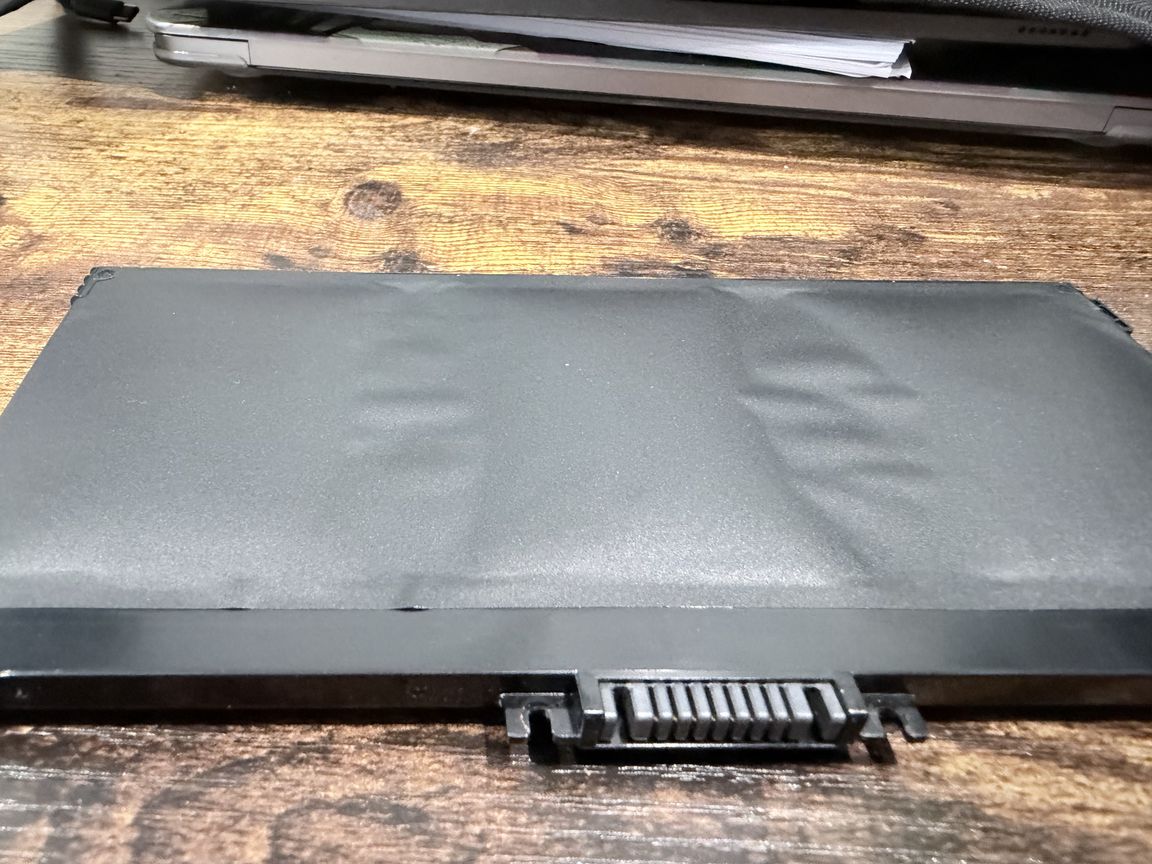
When it’s a swollen battery: stop using it
Stop using the laptop if the case is bulging, the trackpad is lifting, or the palm rest feels hot, tight, or raised above the keyboard. Unplug the charger. Do not keep charging it. Do not puncture the pack.
That is a safety job, not a settings change. The battery replacement guide explains what happens next. If you want us to take it from here, bring the laptop in and we will deal with the pack safely.
What repair costs
When the battery itself has failed, labour starts from £55 plus the part. You get the price for your exact model before any pack is ordered. Diagnostics are free. If we cannot put the fault right, No-Fix, No-Fee applies.
Laptop battery repair in Wickford
The workshop is at 32 Glebe Road, Wickford. Collection is free across SS11, SS12 and South Essex. Bring the charger you use. Start from Wickford laptop repair or contact, or call 07367 652987.
FAQ
Why is my laptop plugged in but not charging?
The charger may be too weak or not seated, the wall socket may be dead, Windows 11 may be showing a stuck reading, or a charge limit may be holding the battery at a set percentage. Work through the quick fixes first. A new battery is the answer only when the cell itself has failed.
Is it the battery or the charger?
Try a charger that matches the wattage on the original brick, in a different wall socket. If the battery then fills, it was the charger or the socket. If the icon only appears when you hold the plug at an angle, it is the port. If a trusted charger is in firmly and the laptop still dies the moment you unplug it, it is the battery.
Can I use it with a dead battery?
Yes, if the laptop still runs while it is plugged in. You can keep working that way for a while. Stop if the case is swollen: unplug it and do not keep charging it. If it will not switch on even with the charger in, the battery is not the only thing to check.
How much does a laptop battery replacement cost?
Labour starts from £55 plus the part. Diagnostics are free, and you get the price for your model before any pack is ordered. No-Fix, No-Fee applies if we cannot put the fault right.
How long does a repair take?
It depends on the model and on the part. The quote comes before any part is ordered, so you know what is involved before anything is bought.
Is a swollen battery dangerous?
Yes. Stop using the laptop, unplug it, do not puncture the battery, and do not keep charging it.